

*Though it only features screenshots from Dosage Calc 360, the information in this article applies to all Davis 360 platforms, including Dosage Calc 360, Med Term 360, and Test Success 360.
Depending on which platform you're using, Davis 360 assignments guide students through learning and assessing the knowledge they need to calculate drug dosages safely and accurately, master the language of medicine, or acclimate to key test-taking skills that'll enable them to succeed on the NCLEX. This support article contains recommendations for implementing Davis 360's assignment types into your syllabus and/or lesson plans. If you instead need a step-by-step look at how students will complete Davis 360 assignments, please consult our student "Assignment Types" article.
The majority of Davis 360 assignment content is comprised of topic-based assignment modules, and Davis 360 assignment modules will take students 30–45 minutes to complete. For more information on how to choose which assignment module exercises students will have to complete, please consult the "Finalize your Davis 360 Class Setup" section of our Instructor "Quick-start Guide" article.
For more information on grading and your Davis 360 Gradebook features, please consult our Instructor "Grading and Metrics" article.
Within each Davis 360 assignment module, you'll find a variety of subtopics, each of which is covered via a Learn tab and Practice exercise. If you know the name of the exercise type you're considering implementing, you can jump to its section by clicking its name within the directory below. A brief overview of each Davis 360 exercise type will accompany its implementation best practices:
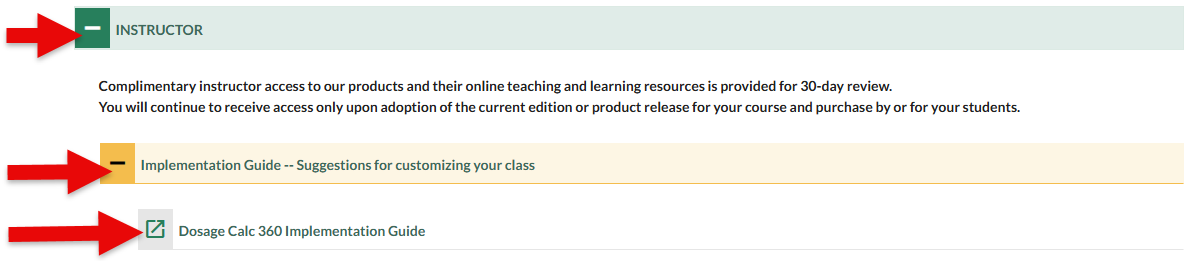
For further recommendations on using Davis 360 in your class, please consult your Davis 360 platform's Implementation Guide, found in the "Implementation Guide" dropdown menu of your Davis 360 platform's Instructor Resources. If you're unsure how to locate your Davis 360 platform's Instructor Resources, please consult our "Instructor Resources" support article.
Subtopic Practice Exercises
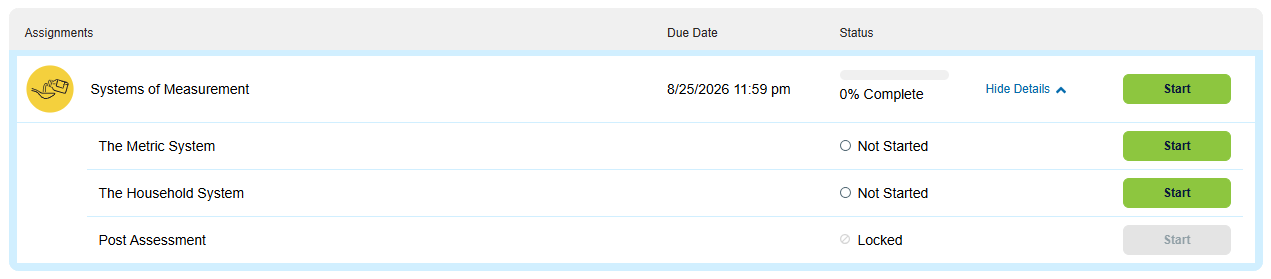
Each Davis 360 assignment module is composed of 2–4 subtopic exercises and one culminating Post Assessment.
Subtopic content will be graded based on completion.
Students will click the "Start" button for a subtopic to access its content.
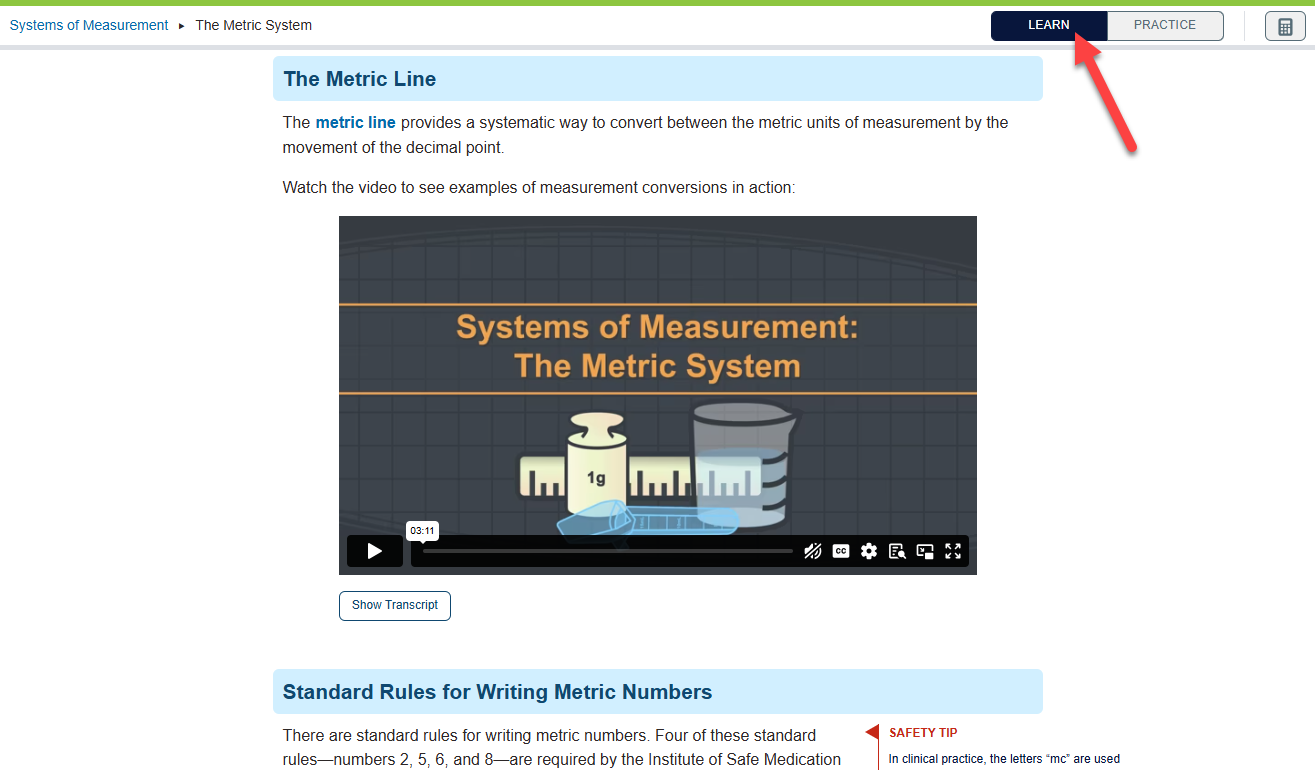
For each assignment module subtopic, students will work through a Learn tab and Practice exercise.
A subtopic's Learn tab introduces students to the subtopic via text, images, and video. Students should read through the full contents of a Learn tab before preceding to its corresponding Practice exercise.
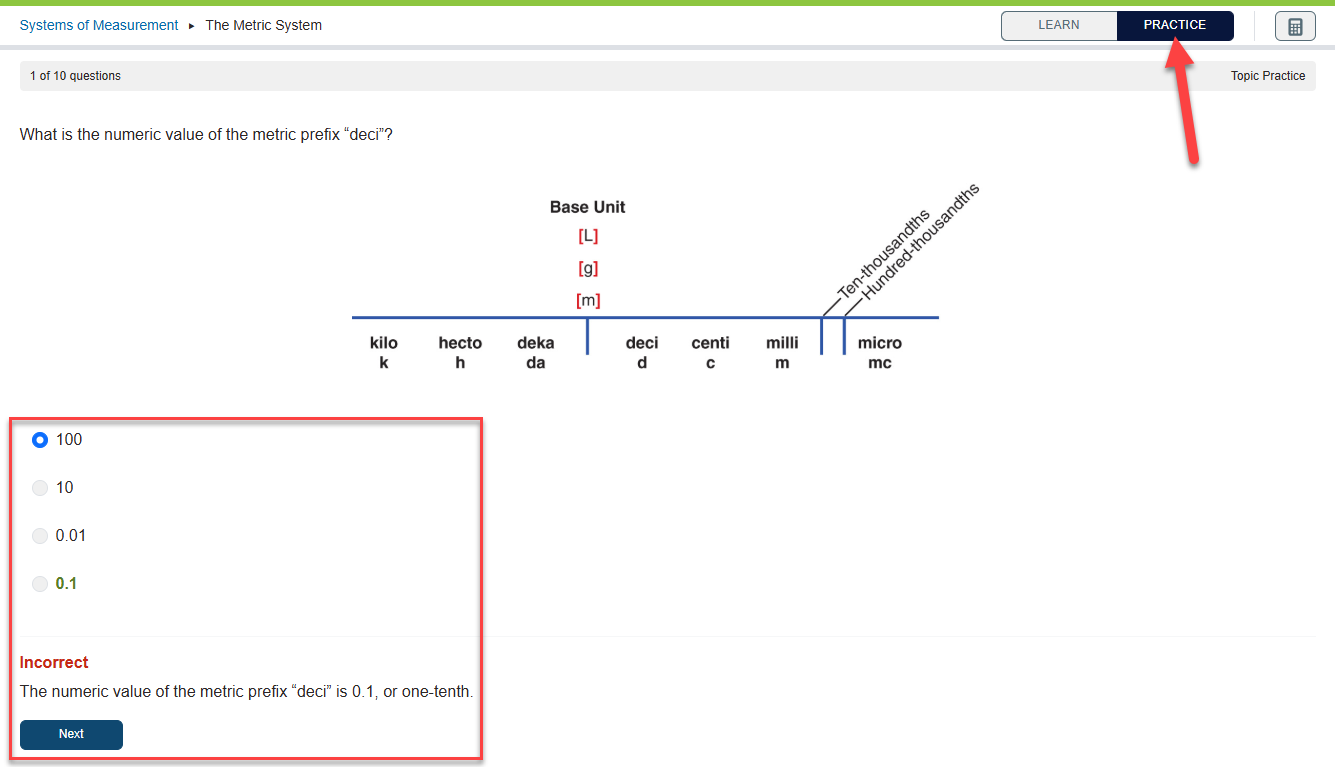
A subtopic's Practice exercise will consist of around 10 questions related to the subtopic at-hand, to check their understanding of the preceding Learn tab content.
Students will have two attempts at every question on a Practice exercise, before they're shown the correct answer and a rationale.
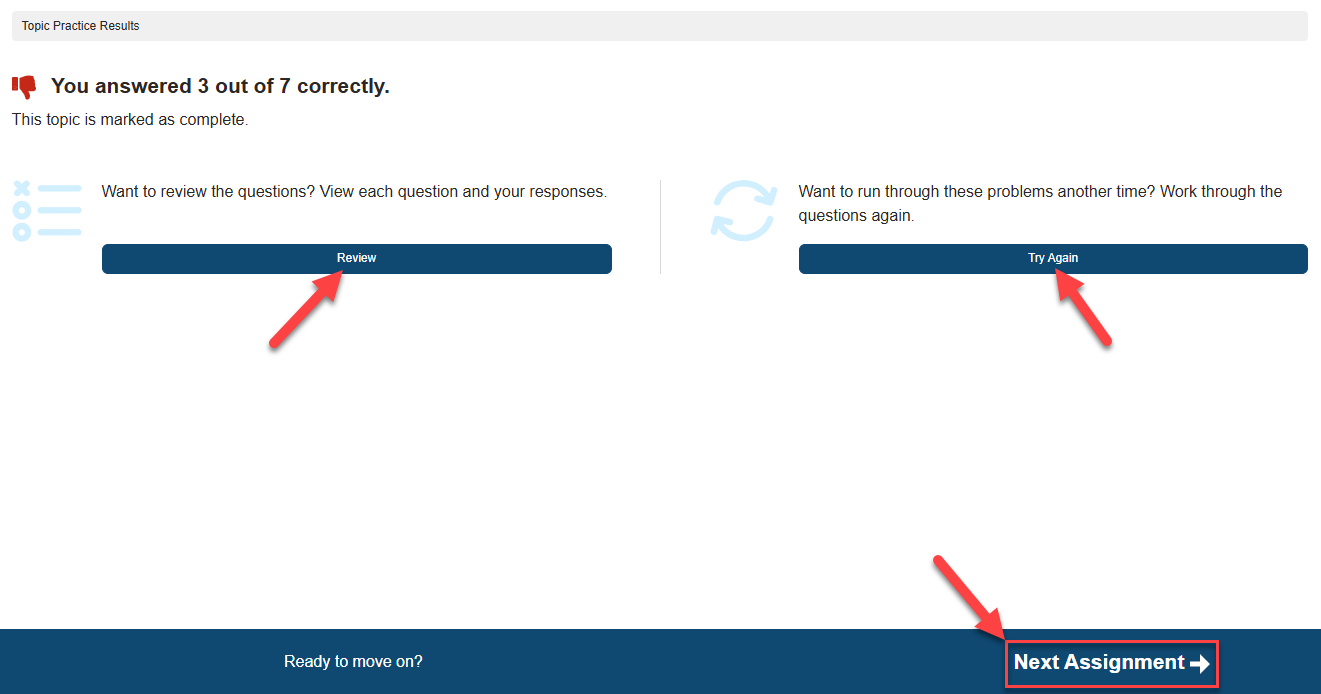
When students finish a subtopic's Practice exercise, they'll be shown how well they did on a "Topic Practice Results" page.
Students can re-take Practice exercises as many times as they'd like. Or, they can click "Review" to get another look at the correct answers and rationales for the exercise they just completed.
If students click "Next Assignment" in the bottom-right of their "Topic Practice Results" page, they'll proceed to the assignment module's next subtopic.
Post Assessments
An assignment module's Post Assessment will be available after students have completed all Practice exercises in the module's preceding subtopics. Post Assessments tie together the topics within the assignment module to gauge a student’s understanding and synthesis of the content.
Depending on your Davis 360 class settings, Post Assessments will be graded based on completion (Participation grade) or competency (Traditional grade). By default, Post Assessments are set to be graded by completion; if you need information on changing your Davis 360 class settings, please consult the "Finalize your Davis 360 Class Setup" section of our Instructor "Quick-start Guide" article.
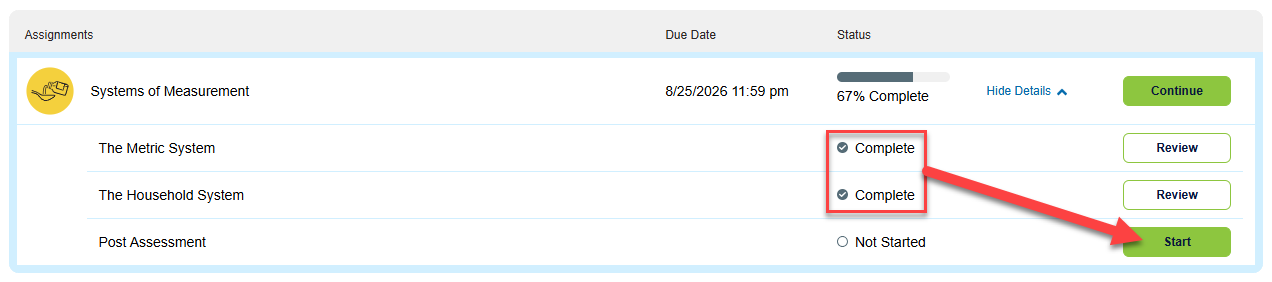
Additionally, depending on your Davis 360 class settings, Post Assessments will be graded on a student's best attempt or their first attempt. By default, Post Assessments are set to be graded on a student's best attempt, meaning a student will be able to re-take the Post Assessment as many times as they want before the assignment module's due date, with their best score recording in your Davis 360 Gradebook.
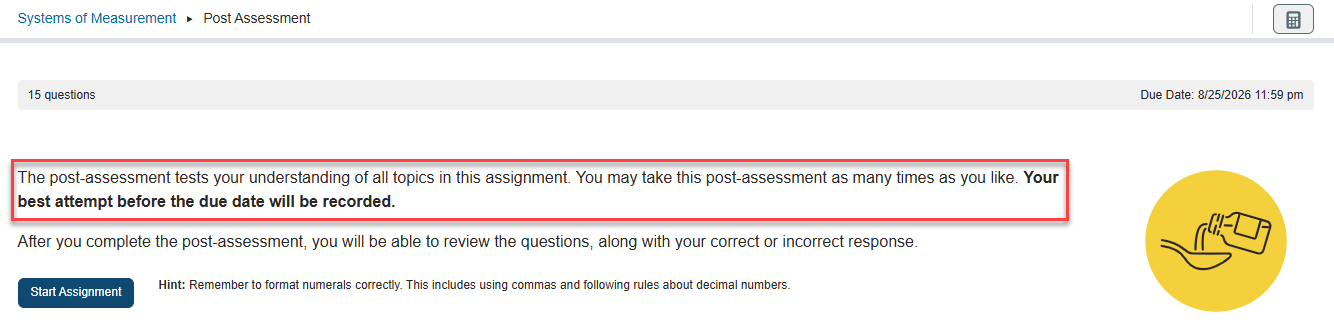
Unlike subtopic Practice exercises, students won't be shown correct answers and/or rationales as they work through a Post Assessment's questions.
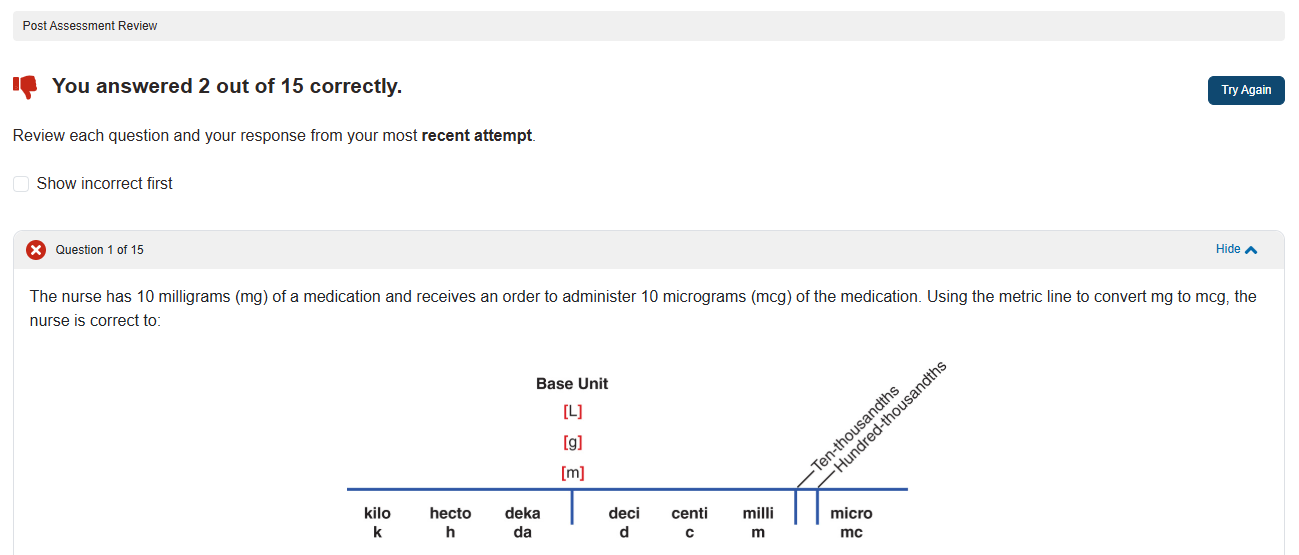
On a student's "Post Assessment Results" page, students will click "Review" to see which questions they got correct via a "Post Assessment Review" page.
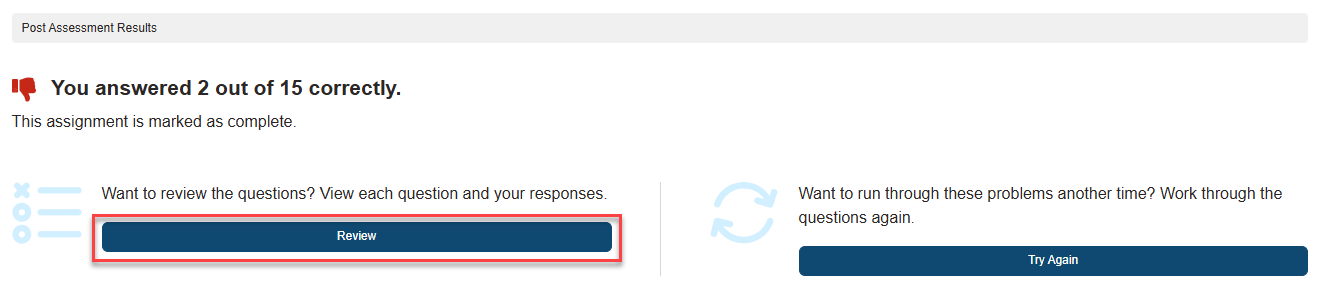
If your Post Assessments are set to be graded on students' first attempt, students will see correct answers and rationales for all questions on their "Post Assessment Review" page.
If your Post Assessments allow multiple attempts, students will only be shown rationales for questions they got correct. Questions students got incorrect will only be designated as such, so they'll know to give those questions extra attention if they re-take the Post Assessment.
Quizzing Assignments
In addition to Davis 360 assignment modules, you'll have the option to create Davis 360 Quizzing Assignments.
Depending on your Davis 360 class settings, Quizzing Assignments will be graded based on completion (Participation grade) or competency (Traditional grade). By default, Quizzing Assignments are set to be graded by completion; if you need information on changing your Davis 360 class settings, please consult the "Finalize your Davis 360 Class Setup" section of our Instructor "Quick-start Guide" article.
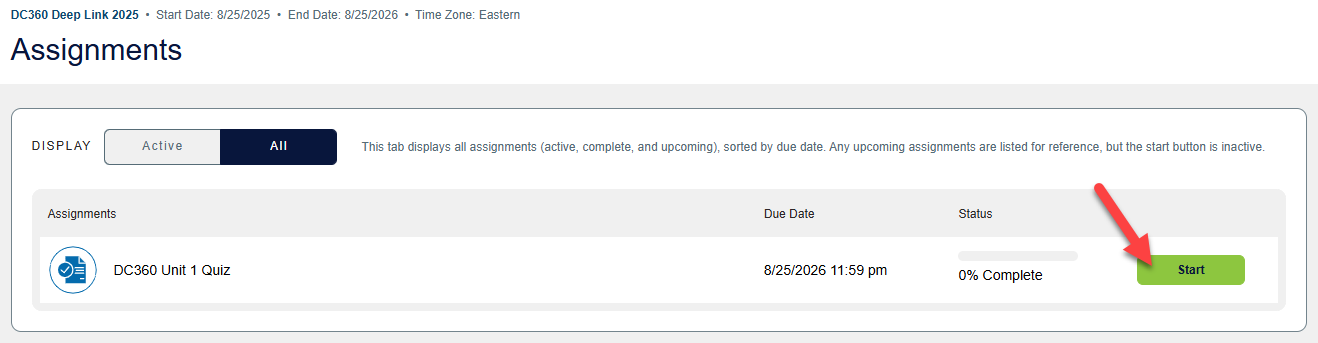
Davis 360 Quizzing Assignments can test student knowledge on one or multiple topic areas, via multiple-choice, select-all-that-apply, fill-in-the-blank questions, and more. For more information on creating Davis 360 Quizzing Assignments, please consult our "Custom Quizzes" article.
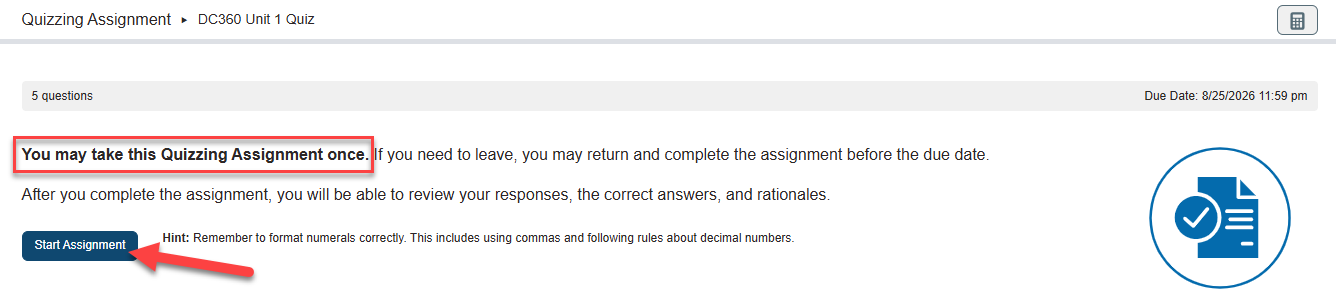
Like Post Assessments, Quizzing Assignments won't provide students answers and rationales as they work through Quizzing Assignment questions. Additionally, depending on your Davis 360 class settings, Quizzing Assignments will be graded on a student's best attempt or their first attempt.
By default, Quizzing assignments are set to be graded on a student's best attempt, meaning a student will be able to re-take Quizzing Assignments as many times as they want before the assignment due date, with their best score recording in your Davis 360 Gradebook.
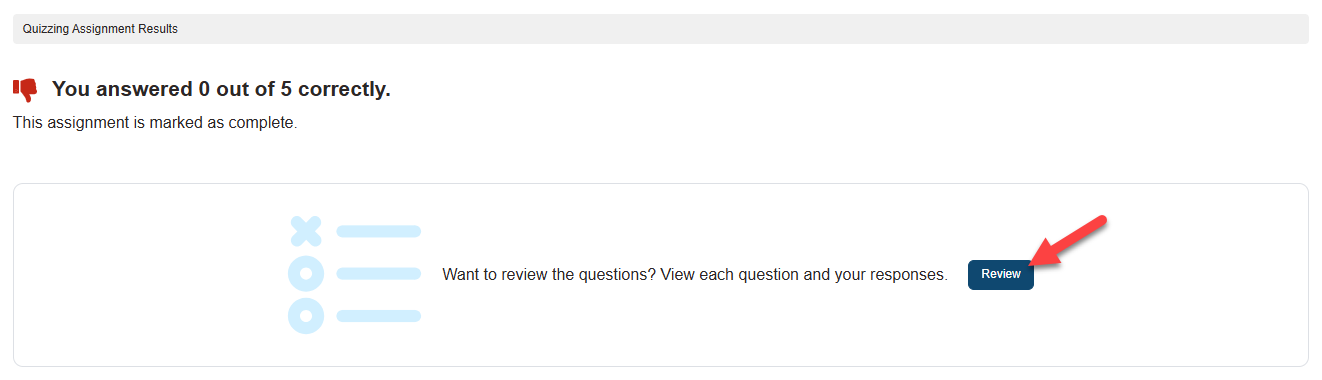
On a "Quizzing Assignment Results" page, students will click "Review" to see feedback for their answer choices, possibly to prepare for re-taking the Quizzing Assignment.
We do not recommend using Davis 360's Quizzing Assignments as exam content.
Quizzing Assignments cannot be paired with proctoring services. Additionally, your Davis 360 Quizzing Assignments and student-created Practice Quizzes (see their section below) use the same question bank, so it's possible students will see question overlap if they make extensive use of Davis 360's Practice Quiz feature.
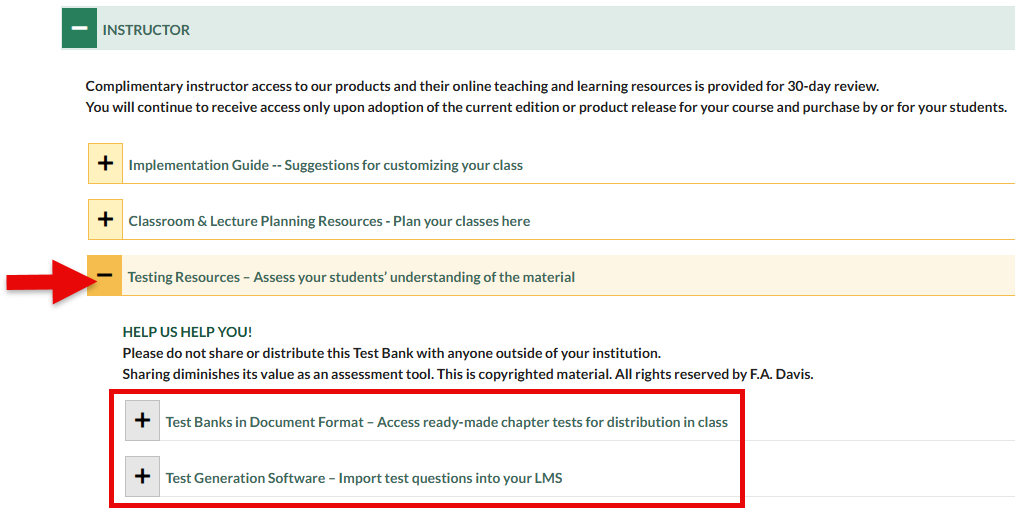
If you'd like questions you can guarantee your students haven't seen in your Davis 360 class, please make use of the test banks in your Davis 360 platform's Instructor Resources. With the aid of your school's LMS admins or tech support, you can even load your Instructor Resources test banks into your LMS, to be used to create quizzes and exams within your LMS' test-making features.
Practice Quizzes
If students want to further familiarize themselves with Davis 360 content, they can make ungraded Practice Quizzes.
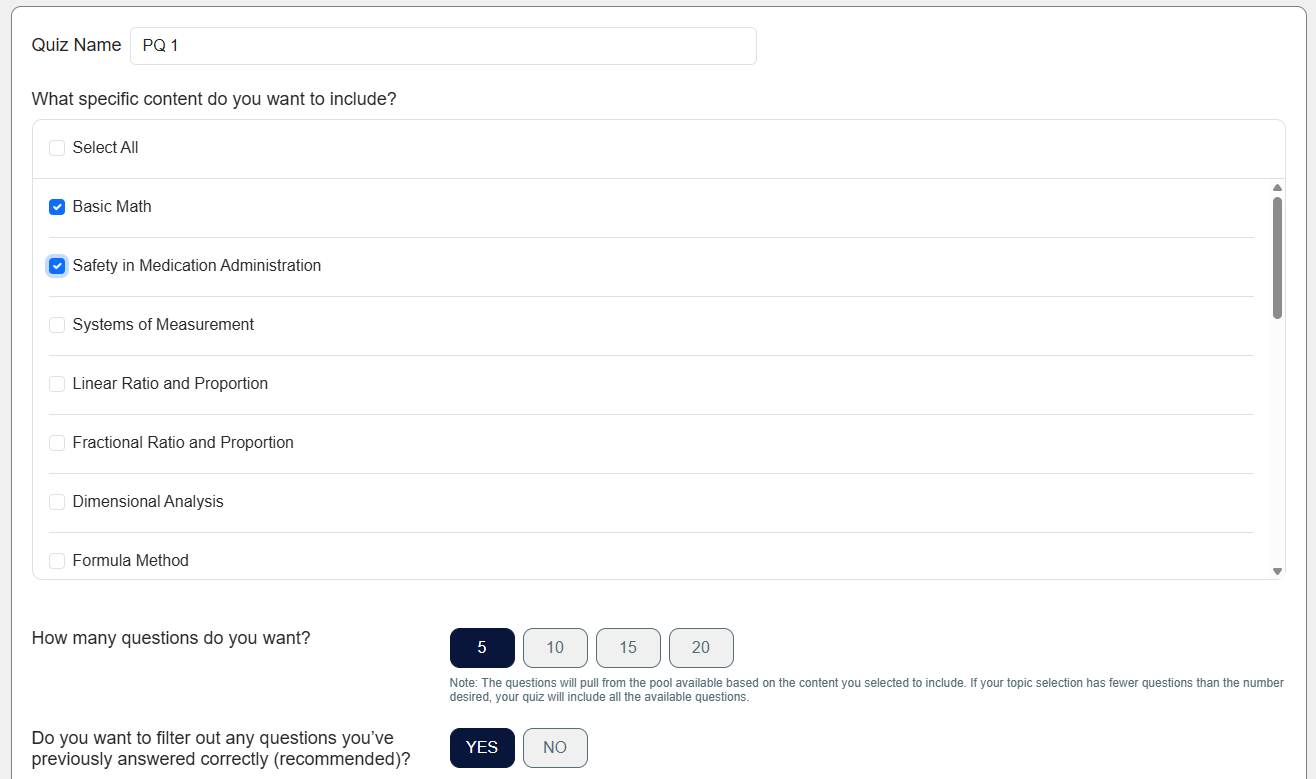
When creating a Practice Quiz, students will be able to choose which topics to cover, how many questions their Practice Quiz will contain, and whether it'll contain questions they've previously answered correctly in other Davis 360 Quizzing Assignments.
To get a more detailed look at how to create Practice Quizzes, for your reference or your student's instruction, please consult our Student "Practice Quizzes" article.
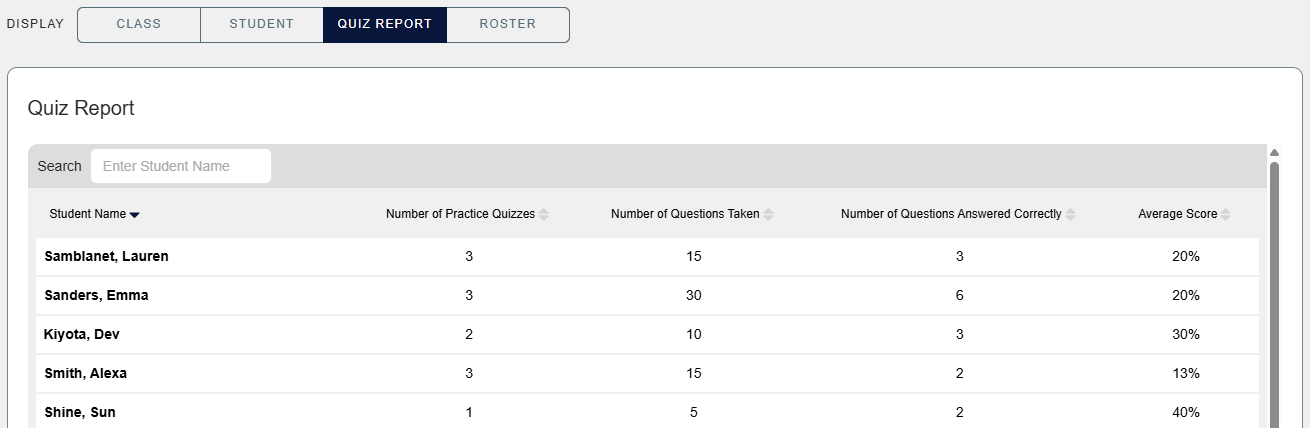
Though Practice Quiz scores won't report back to your Davis 360 Gradebook, you'll still be able to see if your students are making and taking Practice Quizzes via your Davis 360 Gradebook's "Quiz Report" display. For more information on checking student performance analytics, please consult the "Actionable Analytics" section of our Instructor "Grading and Metrics" article.
Practice Quizzes and Davis 360 Quizzing Assignments use the same question bank, so it's possible a student who extensively uses the Practice Quiz feature might see questions that overlap with questions in your Davis 360 Quizzing Assignments. Though it's rare for a student to see just such an overlap when working through the hundreds of questions in a Davis 360 question bank, we still recommend using the test banks in your Instructor Resources for any exam content and in lieu of extensively assigning custom Davis 360 Quizzing Assignments.
If you have further questions about teaching with an integrated Davis 360 class, please contact your Educational Consultant, Business Development Manager, and/or [email protected].

