This support article is intended for instructors who are teaching an additional section of an integrated Davis Advantage class that's already been configured.
If you don't have a pre-existing Advantage class to copy then integrate, please consult our "Create a Class" article for further instruction.
Before You Copy Your Advantage Class
Instead of creating a new Advantage class each time you teach, you can save time by copying the Advantage class that was previously integrated into your LMS course. Once you've copied an Advantage class, you'll reach out to [email protected] for more information on integrating that copied Advantage class within your new LMS course.
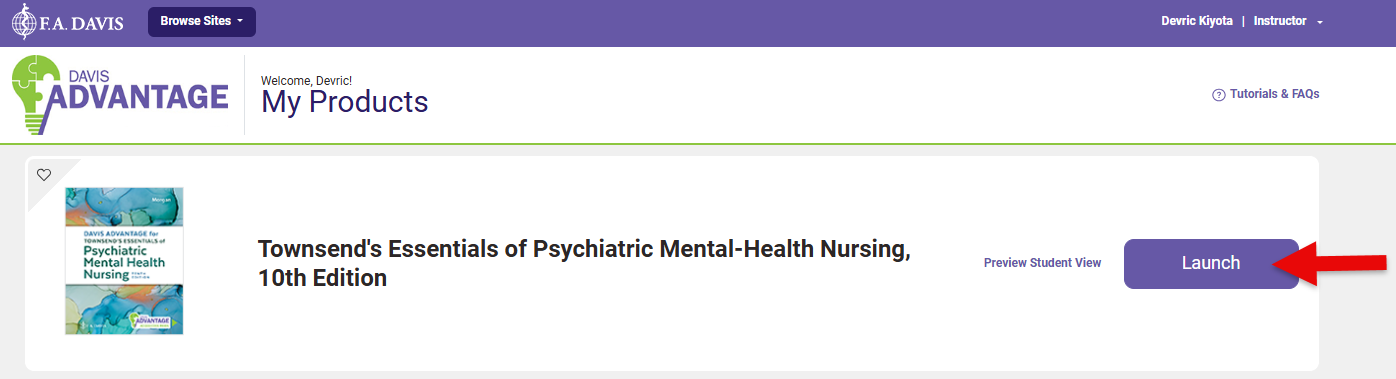
Before you begin copying your Advantage class, check to make sure that you are copying a class from an LMS course with a fully-functional Advantage integration. To test the integration in this “source course," click on any Advantage class link in the source LMS course to confirm that it still successfully loads Advantage content.
If you need more information on launching Advantage class links, please consult our instructor "Quick-start Guide" article.
After successfully launching an Advantage class link, navigate to the Classes page for your required textbook.
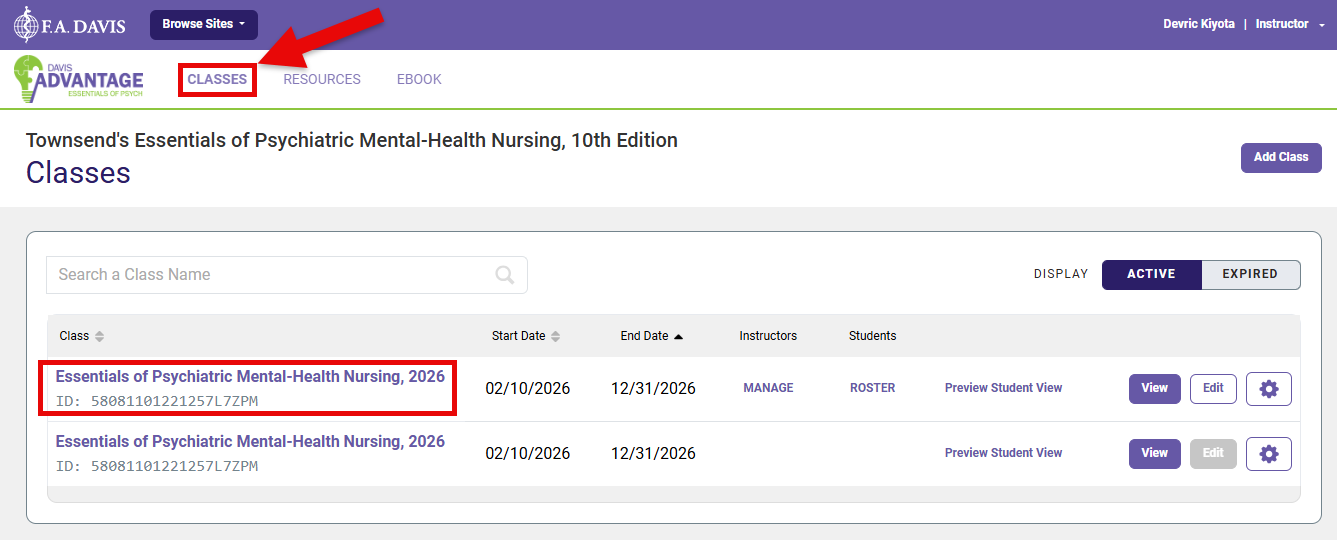
Verify that the original class is still listed in Davis Advantage.
The source course's integrated Advantage class may have the same name as the source course in your LMS, and may appear under either the “ACTIVE” or “EXPIRED” class list depending on how long ago the course concluded.
Do not delete any (active or expired) integrated Advantage classes or their duplicates. If you're uncertain whether an Advantage class is integrated or not, ask your admin to consult the LMS courses that the class in-question could be paired with.
Please note that you can only copy class content using the same edition of the same textbook. If your school may have changed textbook editions recently, you can confirm which edition the previous class used by launching the Classes pages for each respective edition and finding the Advantage class you intend to copy.
To reiterate, if your intended source course used a different textbook and/or edition than what you intend to use for your LMS course, do not copy Advantage content from that LMS course.
Clone Your Integrated Advantage Class
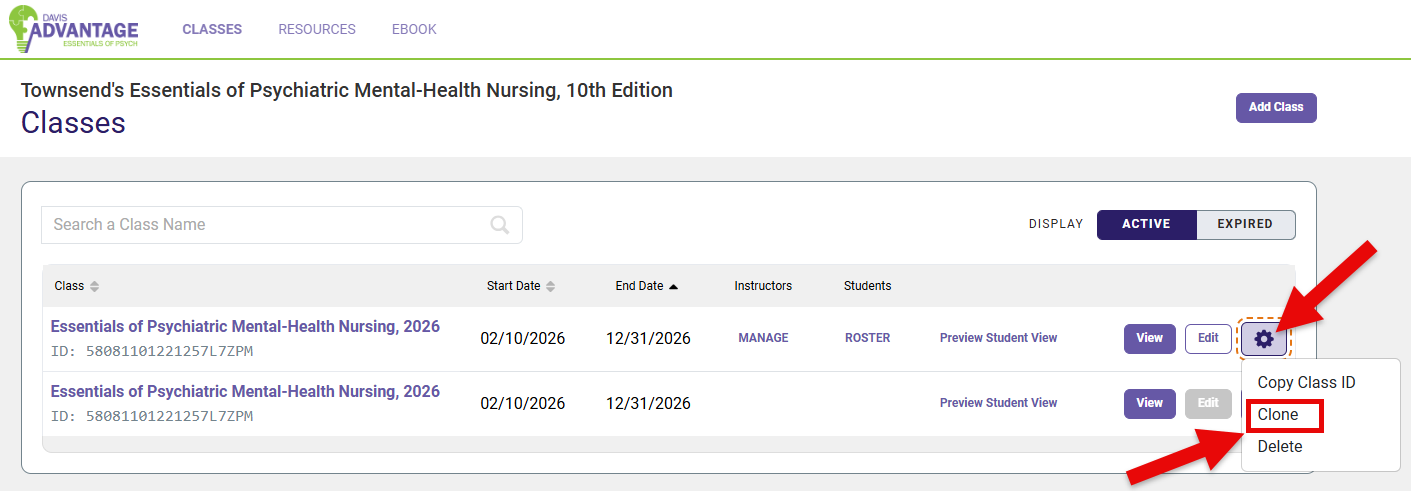
Once you've located the integrated Advantage class you intend to copy, click the cog icon to the far-right of its name to open a dropdown menu. If your integrated Advantage class has a duplicate listing, please click the cog for the editable listing.
From the cog's dropdown menu, select "Clone."
Upon selecting "Clone," the Class Setup for your cloned Advantage class will begin.
We recommend giving this cloned class the same name as the LMS course you will later integrate it into.
After filling in and/or confirming selections on the "Create Class" step for your cloned class, please click the "Next Step" button at the bottom to continue setting up your clone.
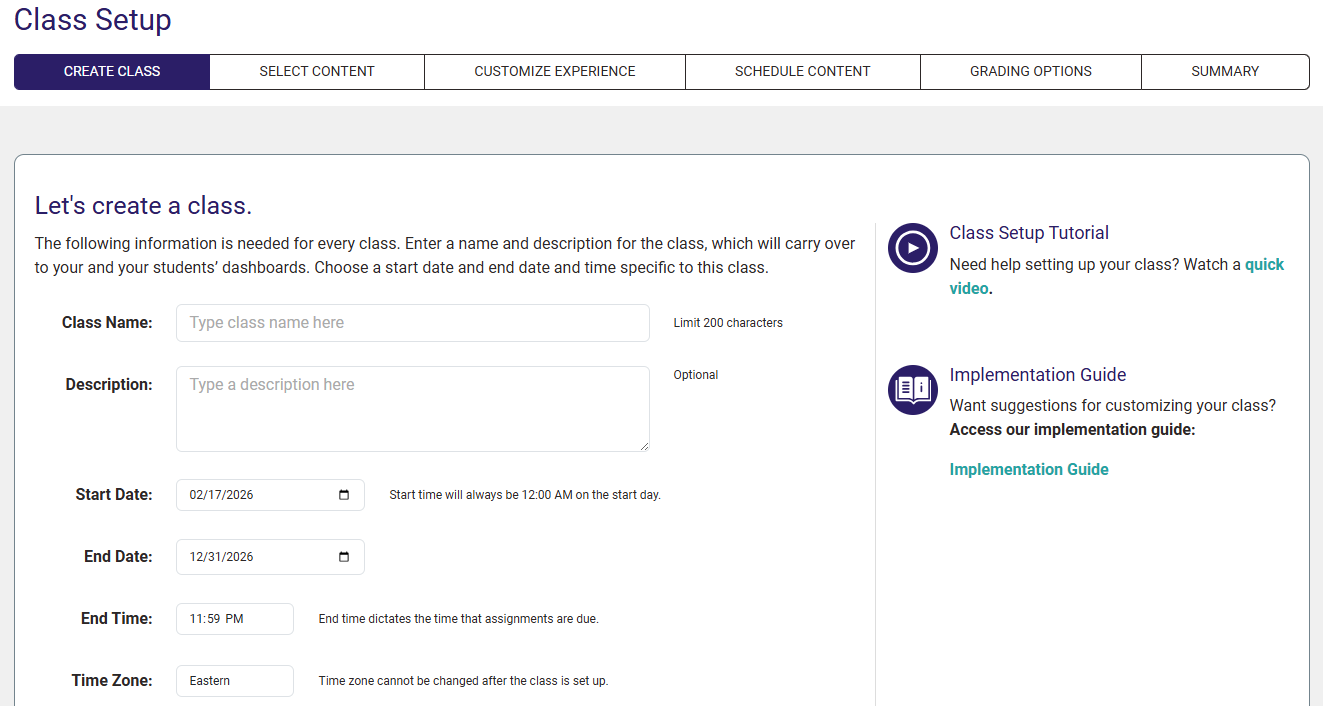
Most of your original Advantage class settings will carry over as part of the class cloning. The bulk of the settings you will need to edit (for each clone), are the assignment due dates, which can be found under the “Schedule Content” tab of your Advantage Class Setup.
And, please confirm your grading rules for each Advantage assignment type, which can be found under the “Grading Options” tab of your Advantage Class Setup.
For more information on your Advantage Class Setup, please consult the "Finalize your Advantage Class Setup" section of our instructor "Quick-start Guide" article.
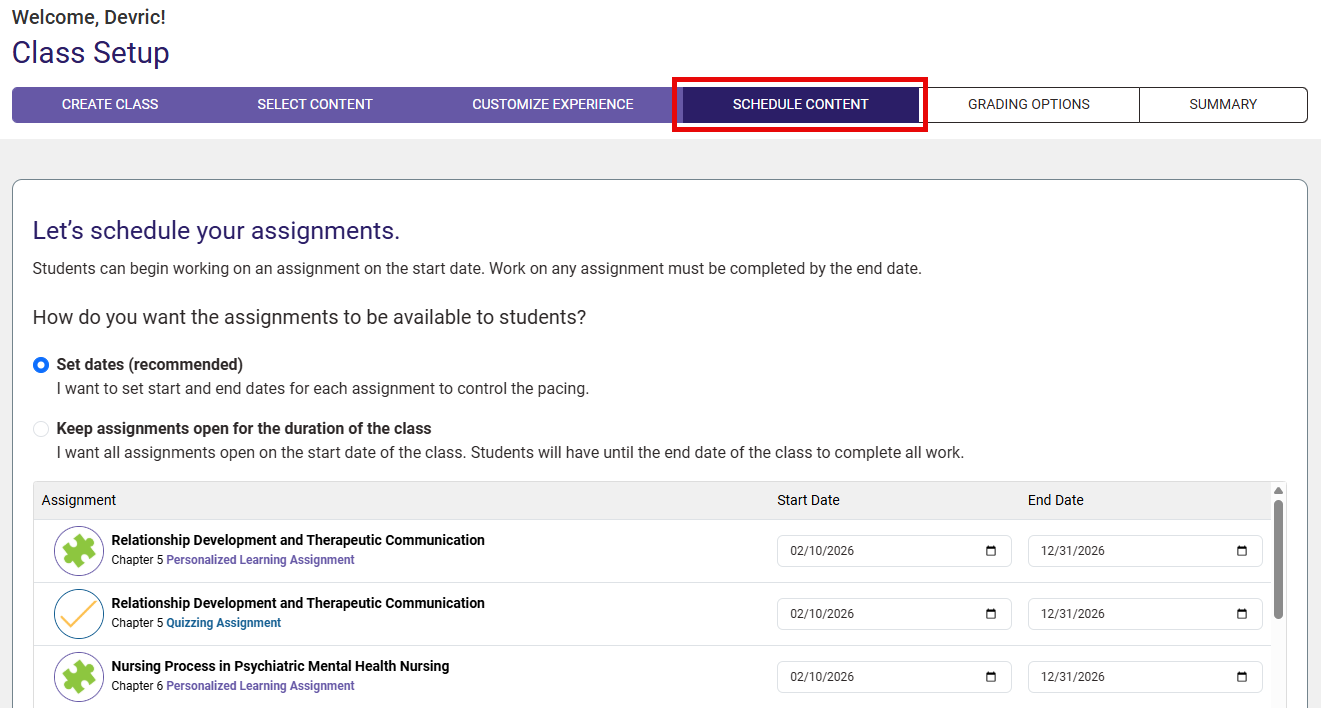
Progress to the "Summary" step of your Class Setup, confirming or changing settings as needed.
Send Your Class ID to FA Davis
Cloning an Advantage class will not automatically integrate that cloned class within your LMS course.
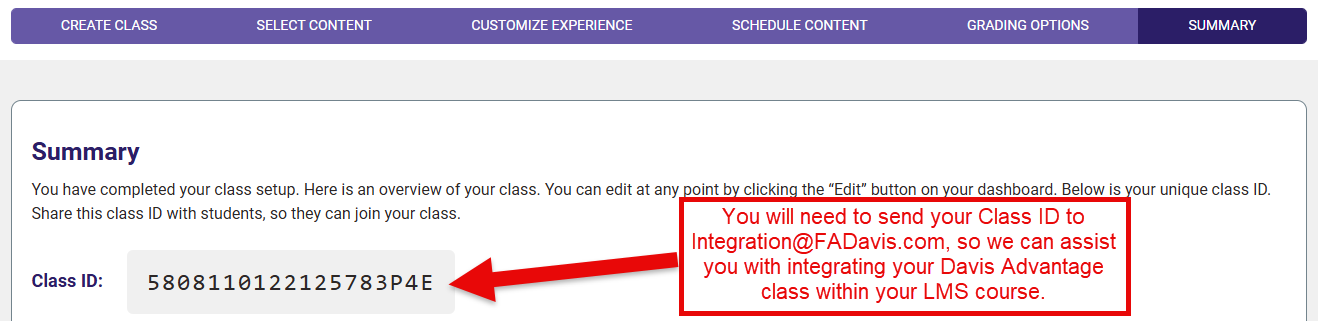
On the "Summary" step of your clone's Class Setup, you will be able to view your clone's Class ID. Please email your clone's Class ID to [email protected], alongside a request for more information on integrating your Advantage class clone within your new LMS course.
Though the Summary step states otherwise, you will not need to provide your students with a Class ID, since they'll join your integrated Advantage class by launching an Advantage class link inserted into your LMS course.