

How to Enroll Students in your Integrated Medical Language Lab Class
Students will be automatically enrolled into your integrated MLL class when they first launch one of the MLL assignments inserted into your LMS course.
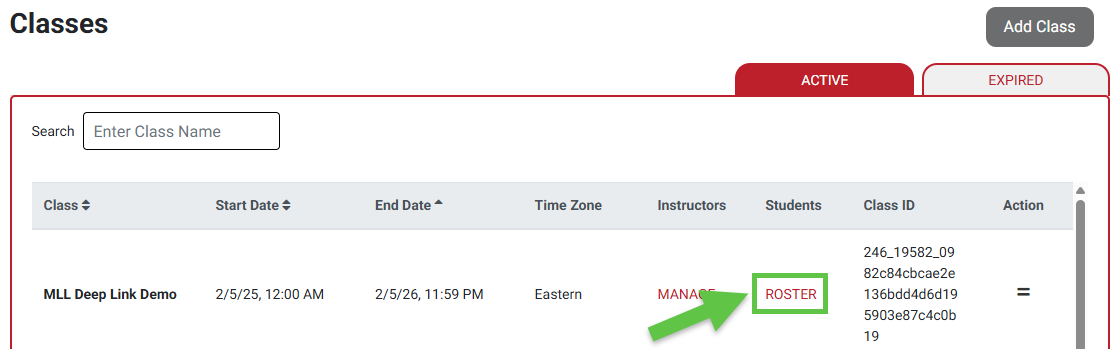
To confirm which students are within your integrated MLL class, click the "Roster" link for the class in-question while on your MLL Classes page. Please confirm your MLL class roster a few days after your class start date, to ensure all your students have enrolled correctly.
For further information on your MLL Gradebook, please consult our instructor "Grading and Feedback" article.
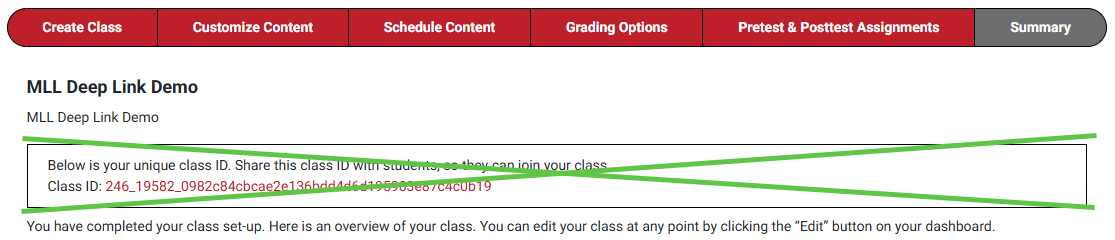
Though the Summary step of your MLL Class Set-up directs you to do so, you will not have to provide students with a Class ID to enroll them in your integrated MLL class. Furthermore, if a student asks you for a Class ID, that's an indicator they are trying to access your MLL class incorrectly.
Their first launch and beyond, students should always access your MLL assignments by launching the MLL assignments links inserted into your LMS course. To model correct access and usage of your MLL assignments, please link our student "Quick-start Guide" article within your LMS course.
The student Quick-start Guide is designed to be an asynchronous orientation of all students need to know to launch and complete assignments within MLL, as well as how to utilize additional resources offered by MLL.
Student Access Error
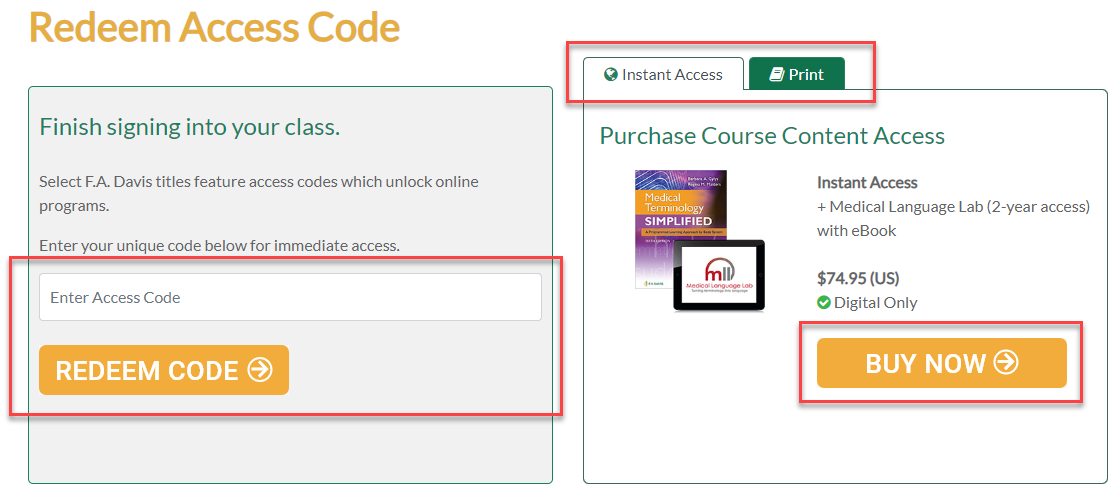
If a student claims to have access to their required textbook via FADavis.com, yet is asked to redeem an Access Code upon their initial launch of your inserted MLL assignments, it's likely the student purchased their textbook resources using a personal email address rather than their institutional email.
Students need to redeem access to their FAD resources with the same email address they use to log into your LMS course.
Using the correct institutional account, students should email [email protected] with a personalized fill-in of the template statement below.
My name is ___, I redeemed access for my textbook under a personal email, and need that access merged with my school email.
Personal email: ___
School email: ___
After their account access has been merged, they'll need to launch one of your inserted MLL assignments to enroll in your integrated MLL class.
Independent Study Mode
If a student reports they've completed MLL assignments, but the student in-question isn't listed on your MLL class' roster, it's possible the student has completed MLL assignments using "Independent Study mode."
Assignments completed within Independent Study mode will not report back to your LMS gradebook and/or any MLL Gradebook.
Instead of launching your inserted MLL assignment links, students completing work via Independent Study mode log into FADavis.com or the MLL website directly. After doing so, they click the "View Content" button of a textbook for which they've never enrolled in an MLL class.
Work completed via Independent Study mode cannot be transferred to your integrated MLL class. Please direct the student in-question to take a screenshot of their Independent Study mode MLL Gradebook, before they then click your inserted MLL assignment links to enroll in your class.
Once the student has properly enrolled in your integrated MLL class, you'll need to manually enter grades for the student in your LMS gradebook. The scores your student received when working in Independent Study Mode will no longer be accessible, so please keep a record of a student's Independent Study Mode performance via the screenshot you directed them to take.
Students who have completed work via Independent Study mode often purchased their resources using a personal email address, and will need to merge their account access (as directed in the "Student Access Error" section above) before enrolling in your integrated MLL class.

