


Before You Copy Your LMS Course
Instead of manually installing new integrated assignment links each time you teach, you can save time by copying assignments from an LMS course you integrated in a previous term, or from a template course prepared for you by an LMS administrator.
Before you begin copying your course, check to make sure that you are copying from an LMS course with a fully functional Dosage Calc 360 integration. To test the integration in this “source course," click on any DC360 assignment link in the source LMS course to confirm that it still successfully loads said assignment.
If you need more information on launching DC360 assignments, please consult our instructor "Quick-start Guide" article.
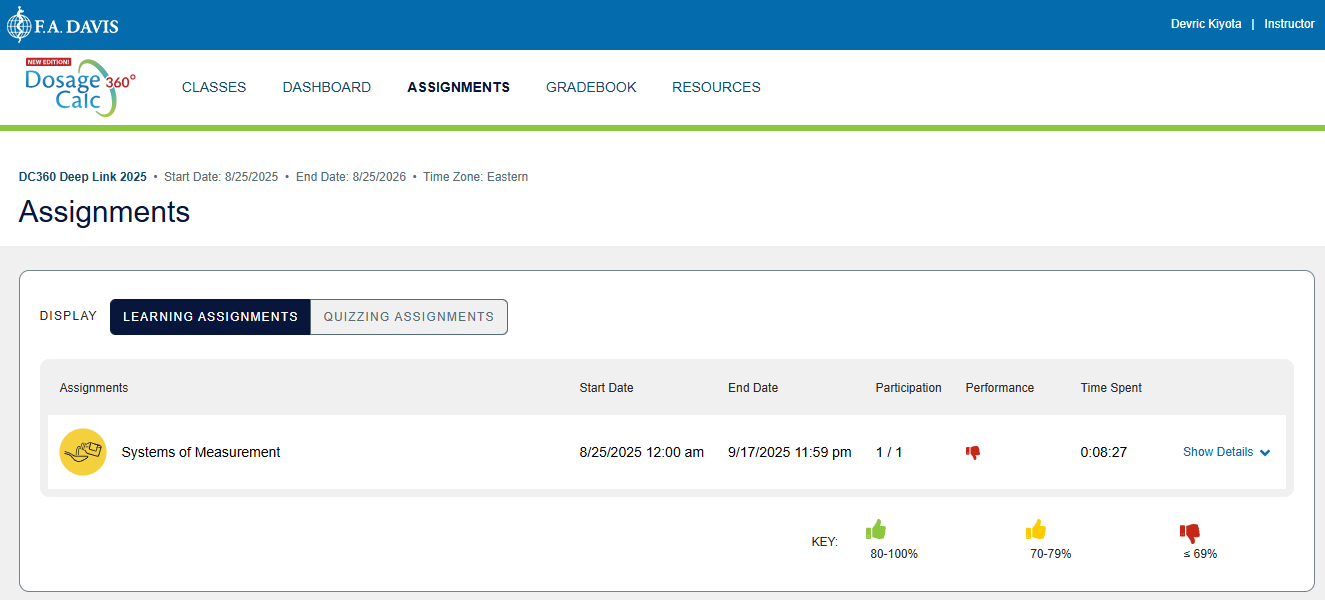
Once you've successfully launched an assignment from your source course, click the “CLASSES” button above the assignment to view your DC360 Classes page and verify that the original course is still listed in DC360.

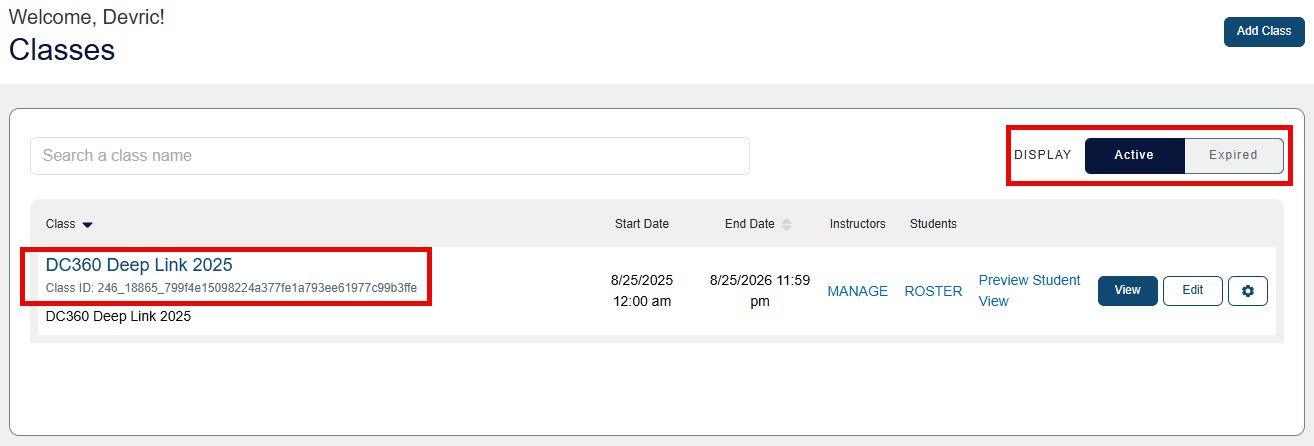
The source course's integrated Advantage class will have the same name as the source course in your Learning Management System, and may appear under either the “ACTIVE” or “EXPIRED” class list depending on how long ago the course concluded.
Copying/Importing DC360 Assignments Into a New LMS Course Shell
To copy your integrated DC360 assignments into a new course shell, you can follow the same steps you would normally take to copy assignments from one LMS course to another.
If this is your first time importing content into a new course, select your LMS from the list below and follow the step-by-step instructions provided by its hyperlinked page:
Launch a DC360 Assignment to Create an Integrated DC360 Class
Click a DC360 assignment link in your new copied LMS course. Depending on your LMS, the DC360 assignment may load automatically in a new browser window, or you may be taken to a launch page with a button to load the assignment.
If you are taken to a DC360 assignment launch page, you may see an assignment description entered by an admin or the source LMS course's creator. If you don't see an assignment description, you can add one later on the assignment's setting page in your LMS.
Click the button that reads "Load (assignment name) in a new window," so your DC360 assignment will launch in a new tab.

If you click a DC360 assignment link and it fails to launch, it's possible your web browser settings blocked the assignment's launch page. Check your browser settings to make sure pop-ups are permitted.
After successfully launching a DC360 assignment, you'll see said assignment.

If DC360 loads successfully upon launching a DC360 assignment, that means you have successfully activated and launched your new integrated DC360 course. The DC360 assignment links in your copied LMS course will not link to the source LMS course's DC360 class.
Your students will now be able to use the links in your LMS to automatically enroll in this new DC360 course and access their assigned coursework, which will be recorded in your new LMS course's gradebook.
Please stress to your students that they must always access DC360 assignments via the links in your new LMS course, for their grades to record correctly. To reinforce the correct way to access your DC360 assignments, you can insert the student "Quick-start Guide" article into your LMS course and/or send the link for that article directly to your students.
Finalize Your New DC360 Class' Settings
Most of your original LMS course's DC360 Class settings will carry over as part of the LMS course copy. The only settings you will need to edit each time are the assignment due dates, which can be found under the “Schedule Content” tab of your DC360 Class Setup.
To navigate to your DC360 Class Setup, first launch a DC360 assignment, then navigate to your DC360 Classes page by clicking "Classes" in the top-left navigation bar.

Your DC360 Classes page collects your current and expired DC360 classes. After a successful launch, a DC360 class with the same name as your LMS course will appear under your list of Active Classes.
Do not delete any (active or expired) integrated DC360 courses or their duplicates. If you're uncertain whether a DC360 class is integrated or not, look at its Class ID; integrated ADC360 classes have longer Class IDs than non-integrated DC360 classes, as well as Class IDs which contain underscores.

For more information on your DC360 Classes page features, please consult the "Navigate to your Dosage Calc 360 Class Setup" section of our Instructor "Quick-start Guide" article.
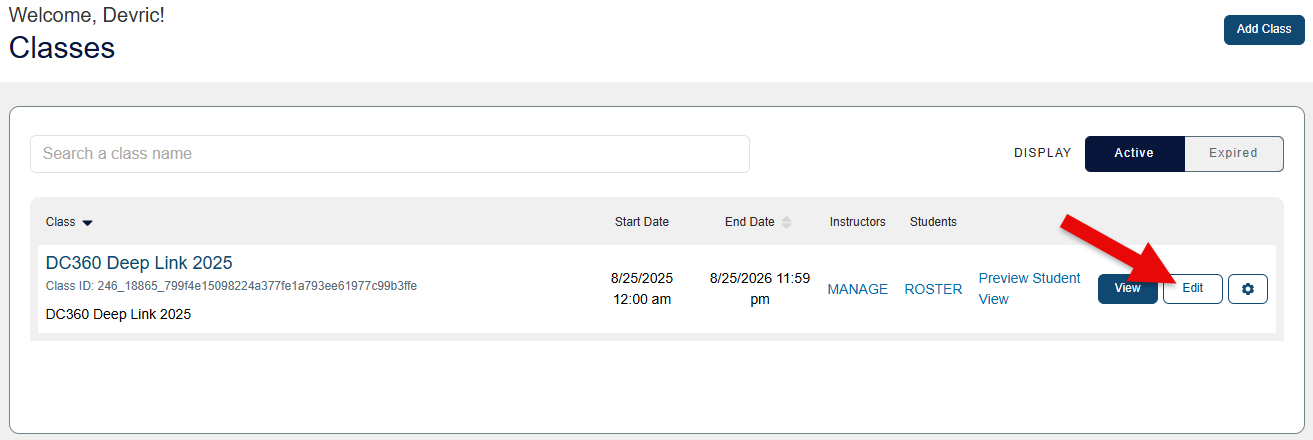
Click the "Edit" button for your class to access your DC360 Class Setup.
Details on Dosage Calc 360 Class Setup navigation can be found in the "Finalize your DC360 Class Setup" section of our Instructor "Quick-start Guide" article.

