


For information on creating quizzes within Dosage Calc 360 you can then add to your LMS course, click to jump to this article's "Creating Custom DC360 Quizzes" section.
If you have already created custom DC360 quizzes and now need to add those custom quizzes to your LMS course, click to jump this article's "Inserting Custom DC360 Quizzes" section.
If you're unsure how to insert DC360 assignments into your LMS course using the FA Davis External tool, please contact [email protected] for assistance.
Creating Custom DC360 Quizzes
Please note your custom quizzes will be graded based on the same grading option you chose for your DC360 Quizzing assignments, in the "Grading Options" step of your DC360 Class Setup. For more information on grading in DC360, consult our instructor "Grading and Feedback" article.
To create custom DC360 quizzes, first access your integrated DC360 class. If you're unsure how to access your integrated DC360 class, please consult our instructor "Quick-start Guide" article.
Once you've accessed your DC360 class, select "Assignments" from the top-left navigation bar.

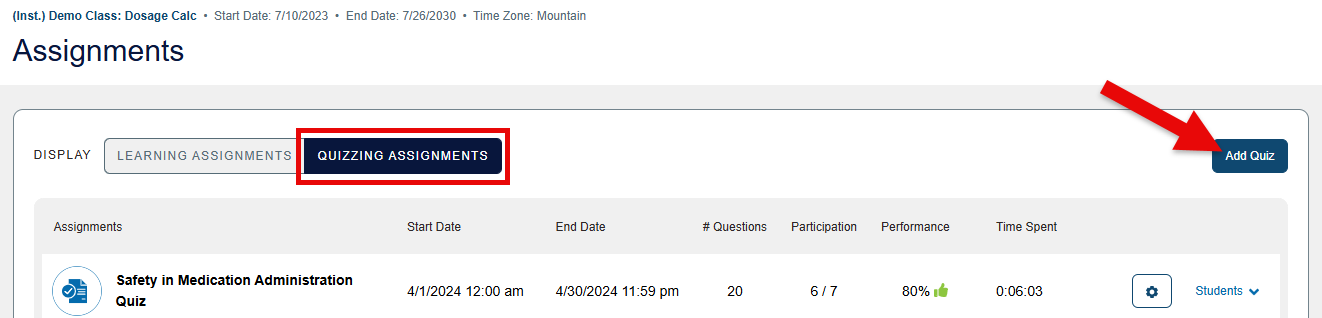
On your Assignments page, choose to display "Quizzing Assignments" then click the "Add Quiz" button in the top-right above your list of current Quizzing Assignments. Clicking "Add Assignments" will launch your "Add Quizzing Assignment" quiz builder.
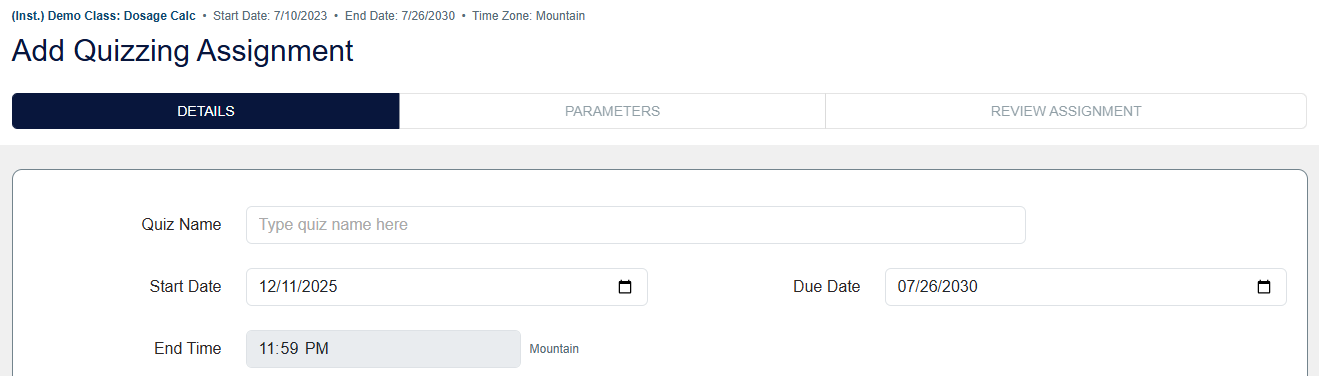
As the first step of building your custom DC360 quiz, you will determine the quiz's details. Type in an Assignment Name for your quiz.
Then, choose a Start Date and End Date. The quiz's Start Date will determine when your students can begin accessing the quiz you're creating (on the first minute of the selected Start Date day). To avoid access errors, make sure the Start Date you choose here doesn't conflict with the availability you'll set for your custom quiz's LMS assignment link.
The quiz's End Date will determine when the assignment is due for credit, and the quiz's End Time will match the End Time you chose in your DC360 Class Setup. To reiterate for the sake of clarity, please think of a quiz's End Date as the quiz's due date, because an End Date will not end a student's ability to access a DC360 assignment.
After entering and choosing the details for your custom DC360 quiz, select the type of Quizzing assignment you'd like to create. Once you've selected which type of assignment you want to create, you'll click "Next Step" to proceed creating your quiz.
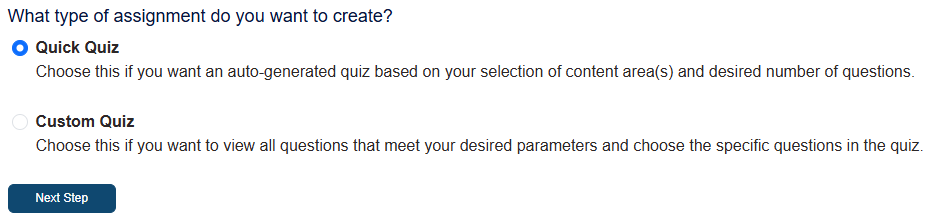
There are two creation options to choose from, which will be reviewed below. If you know which creation type you want more information on, click its name below to jump to its section:
Both creation options will culminate in a "Review Assignment" step, so that step will be reviewed beneath the individual creation options.
Quick Assignment
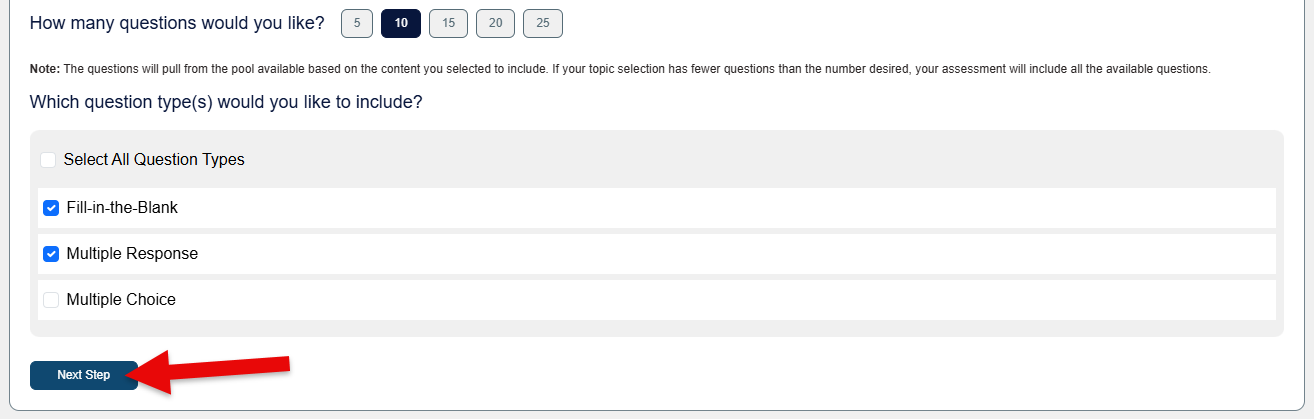
The "Quick Quiz" option generates questions based upon the topic(s) and question type(s) that you would like to include, and can range between 5 and 25 questions.
Choosing "Quick Quiz" will proceed with its "Parameters" step, where you'll select the topics/concepts you would like to include. You can choose to have all course topics/concepts available for the Quick Quiz to draw questions from, or you can choose one or several specific topics/concepts to draw questions from.
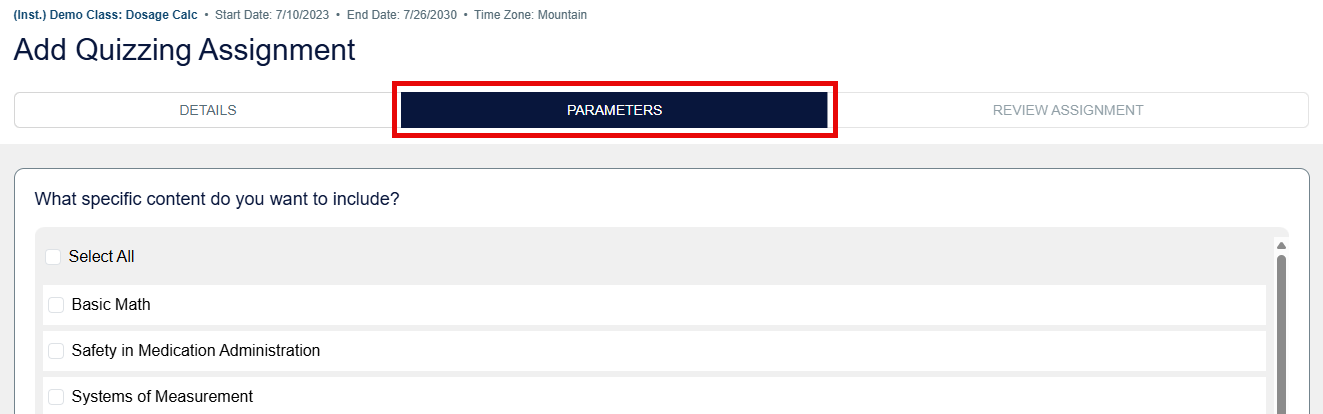
Next, select the number of questions you would like, and which question type(s) you'd like to include.
Click the "Next Step" button to proceed to the quiz builder's "Review Assignment" step.
Once you have set the parameters for your Quick Assignment and click "Next Step," the quiz builder will generate a quiz for you with randomized questions from within your chosen parameters. You'll be able to further customize those randomized questions during the "Review Assignment" step.
Custom Quiz
Custom Quizzing Assignments allow you to hand-pick each question, rather than generating questions for you.
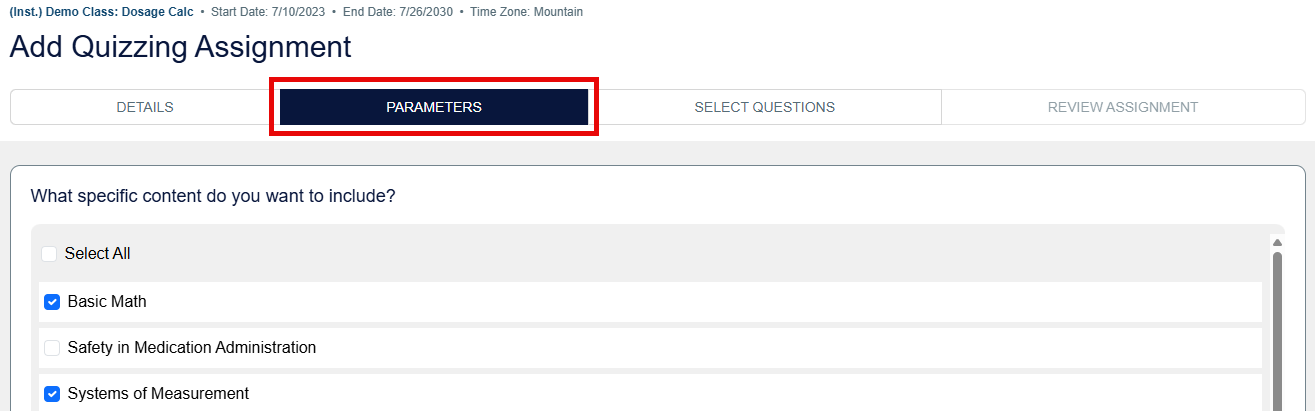
For the "Parameters" step of a Custom Assignment, select the topics/concepts you want to choose questions from. You can "Select All" content options, select just one, or select multiple respective content options.
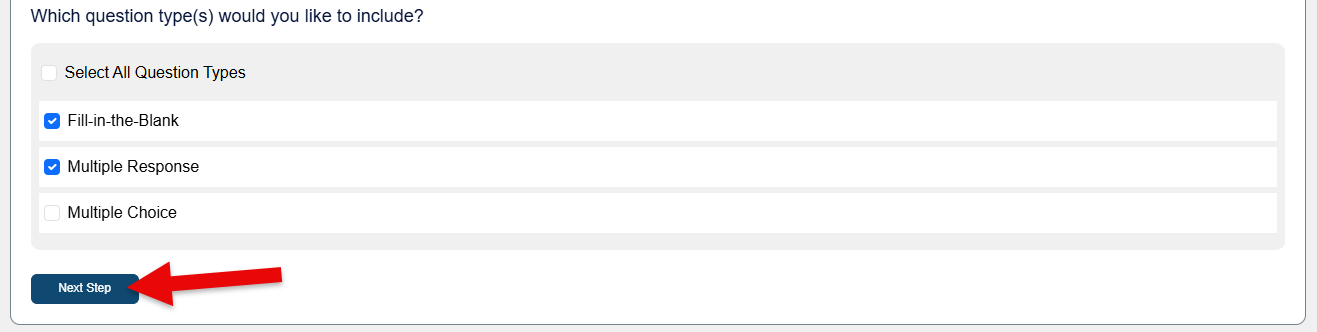
Then, select which question type(s) you would like to choose from. You can choose "Select All" to view all possible options, or narrow the pool down to one or more specific question types.
Click "Next Step" when you've made your Parameters selections, to continue creating your Custom Quiz.
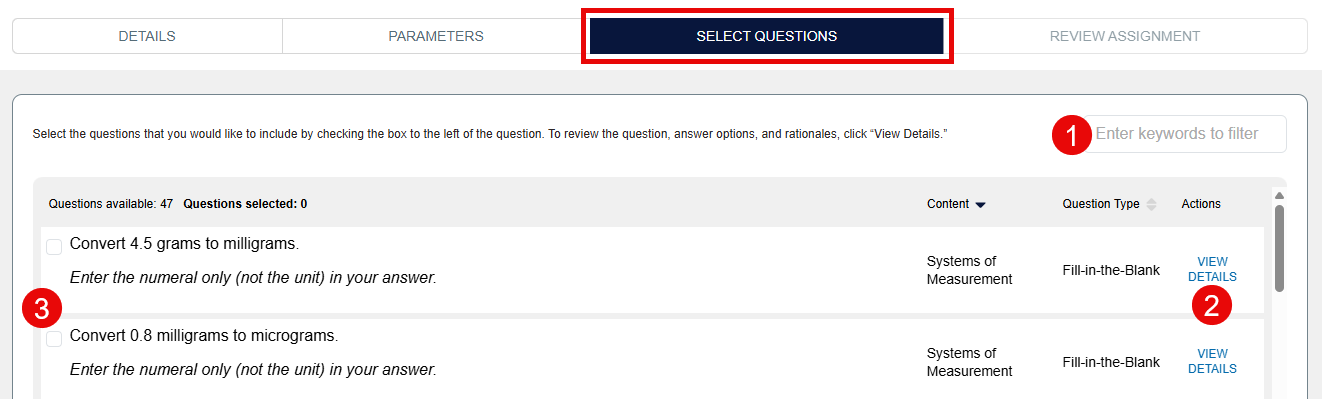
Based on your Parameters selections, the Custom Quiz option's "Select Questions" step will present you the available questions for your custom quiz.
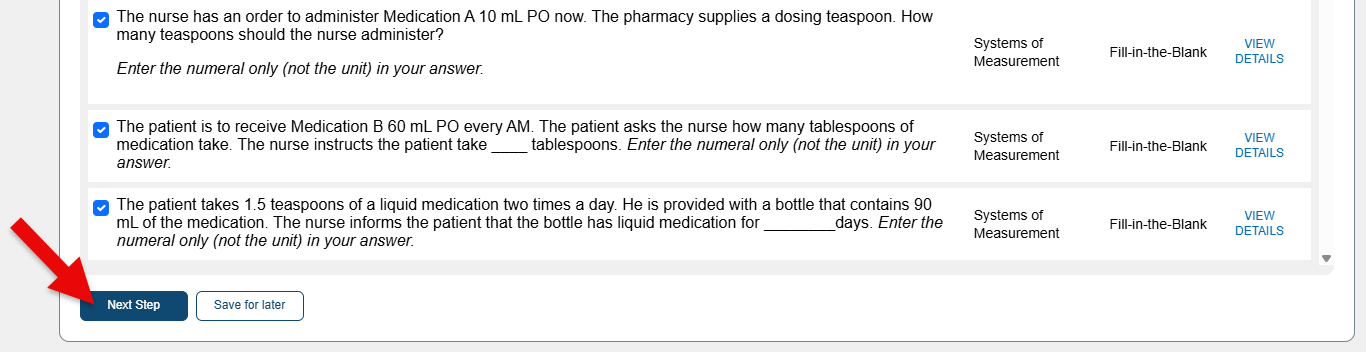
You can type keywords into the search bar to filter results (1). You can also View Details (2) to review rationales for each question. When you want to add a question to your Custom Quiz, select it by click the checkbox to its left (3).
Once you've selected your Custom Quiz questions, scroll to click the Next Step" button and proceed to the quiz builder's "Review Assignment" step.
If you need to complete the quiz-making at a later time, you can click the "Save for later" button to save your progress on the Custom Quiz you're creating
"Review Assignment"
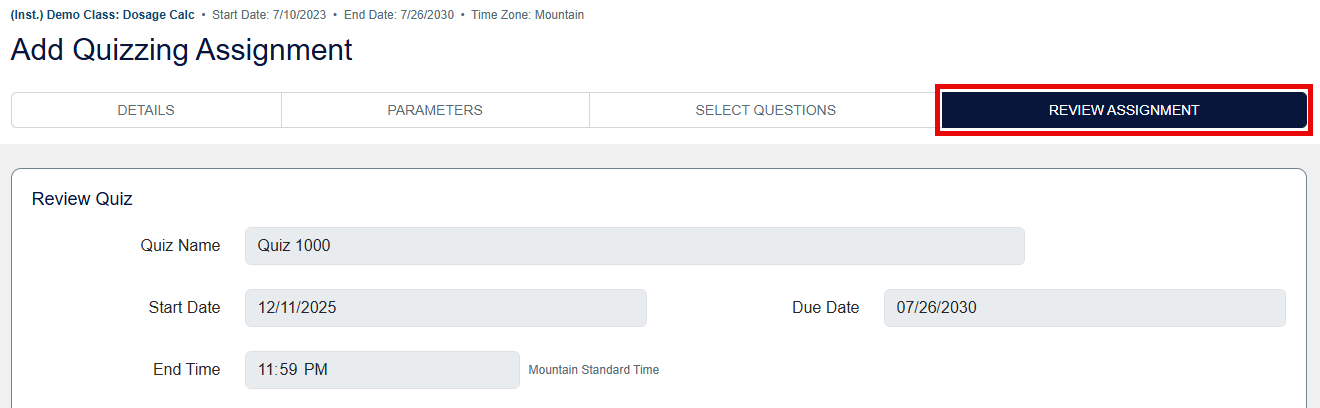
Both custom quiz creation options culminate in a "Review Assignment" step, wherein you'll finalize your custom Quizzing Assignment before publishing it.
At the top of a "Review Assignment" step, you can confirm or changes the custom quiz's Assignment Name, Start Date, and/or End Date.
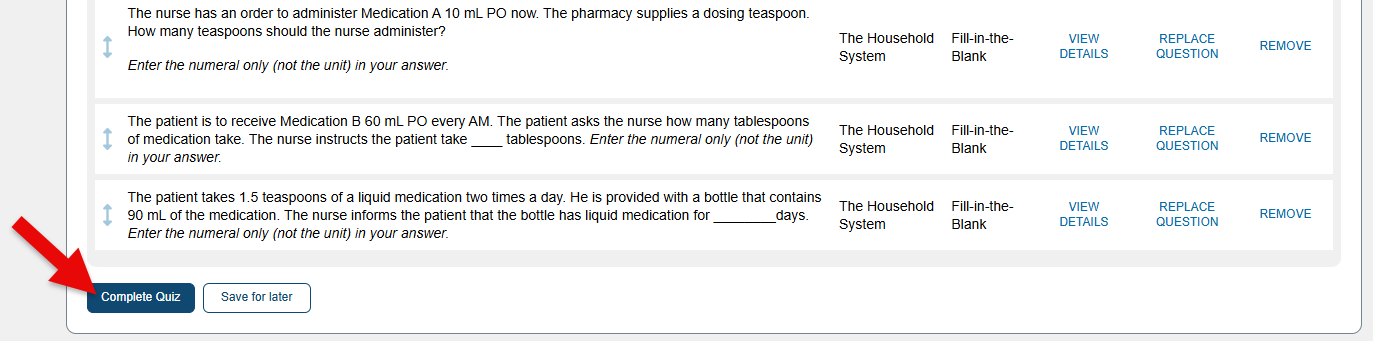
The question order for your custom quiz will be randomized by default, but that you can select "No" if you would like questions to appear in a specific order. After selecting "No," you can customize question order by using the drag-and-drop arrows to the left of questions.

You can review your custom quiz's current questions individually by clicking View Details. When you click "View Details" for a question, a popup will appear with the question's full text, its answers, and the rationales a student would see for the question upon completing the quiz its within.
If you find a question you would rather not use, click "Replace" for that question to generate a different question within the same topic/concept.
You can also "Remove" questions that you don't want to use, reducing your custom quiz's total question number.

Once you're satisfied with your selections on the "Review Assignment" step, scroll to the bottom and click the "Complete Quiz" button to add your custom quiz to your DC360 class.
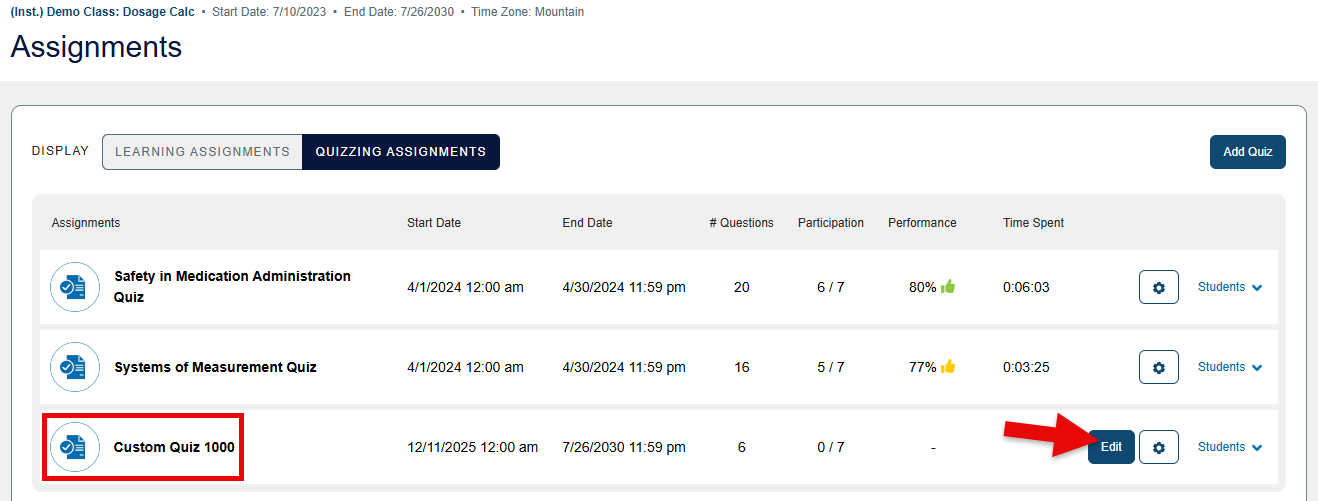
After clicking "Complete Assignment," your custom quiz will appear on your DC360 class' Assignments page, listed by due date. You'll be able to edit your custom quiz until it's accessed by a student.
Inserting Custom DC360 Quizzes
Creating a custom quiz will not automatically insert it into your LMS course. Once a custom quiz is visible on your DC360 class' Assignments page, you will need to insert said custom quiz within your LMS course using your FA Davis External Tool, so your students can access and complete it.
If you're unsure how to insert DC360 assignments into your LMS course using the FA Davis External tool, please contact [email protected] for assistance.
Once you've accessed your FA Davis External Tool, click the "Content Source" dropdown menu and select "Quizzing Assignments."
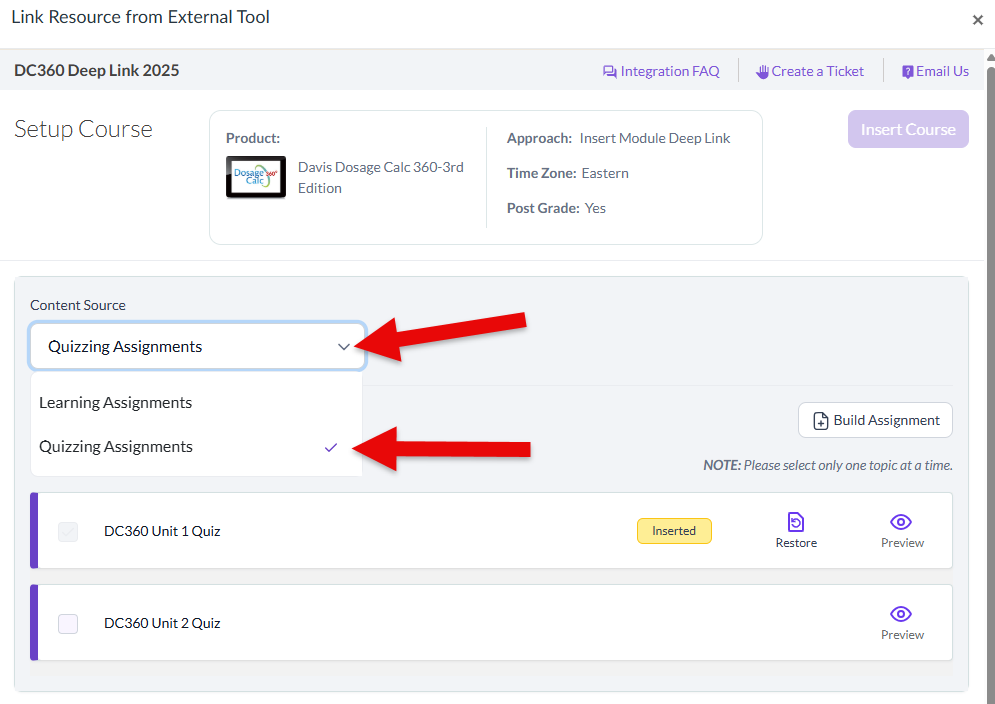
Once your Quizzing Assignments content list is displayed, click the checkbox to the left of the custom quiz you want to insert, then proceed with the DC360 assignment insertion process that was recommended by your FA Davis Integration Team contact.
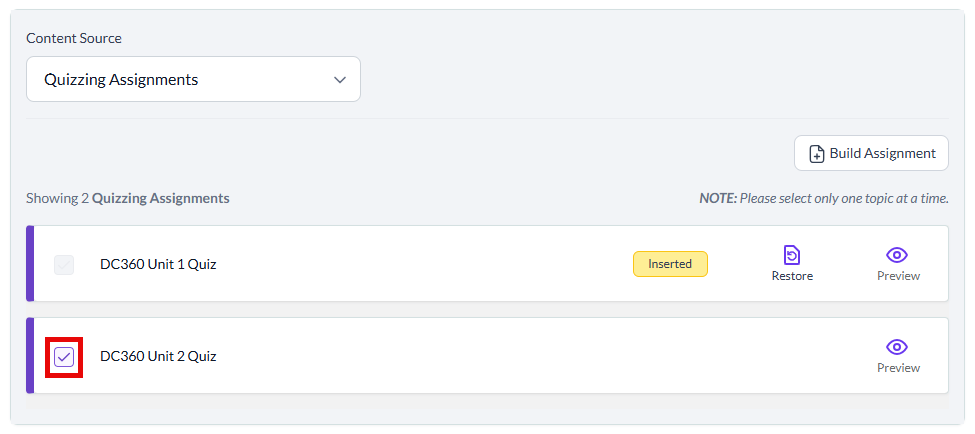
If you have not yet created a Quizzing Assignments at the time of accessing your FA Davis External Tool, you can click the "Build Assignment" button (while viewing your Quizzing Assignment content) to be taken to the quiz builder within your integrated DC360 class.


