


1. Before you begin
Do not attempt to access Medical Language Lab assignments via the FA Davis website, because doing so will prevent your work from being recorded.
To access the MLL assignments your instructor has selected for you, log into your Learning Management System (Blackboard, Canvas, Moodle, or D2L/Brightspace) and access your instructor’s course.
2. Locate an MLL assignment
From your LMS course homepage, locate a Medical Language Lab assignment link.
The locations and titles of MLL assignment links will vary depending on how your instructor has designed your course. Look for "Medical Language Lab," or chapter titles like "Body Structure” and "Medical Word Elements." Ask your instructor for help if you're unable to find your MLL assignments.
Though the example below is of an MLL assignment link within a Canvas course, your MLL assignments will appear similarly in all Learning Management Systems.

3. Launch an MLL assignment
When you click a Medical Language Lab assignment link in your LMS course, the assignment may load automatically in a new browser tab, or you may be taken to a launch page with assignment instructions and/or a launch button.
On an MLL assignment launch page, click the button that reads "Load (assignment name) in a new window" to launch your assignment in a new tab. If your MLL assignment fails to launch, check your browser settings to make sure pop-ups are permitted.

If your institution purchases course materials on your behalf or if course materials are included as part of your tuition, your first launch of an MLL assignment link likely won't prompt you to redeem your MLL access, and will instead bring you directly to your MLL assignment.
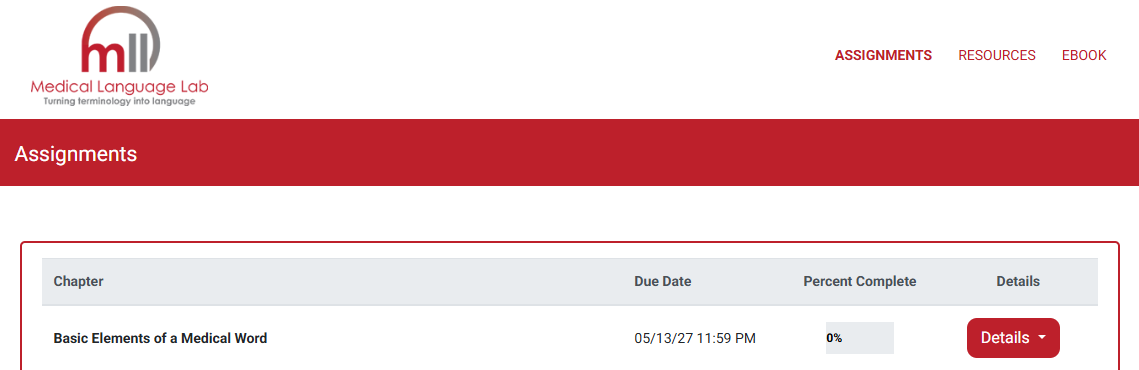
If you are personally responsible for purchasing your own course materials, please continue to the "Redeem access" step below.
If you don't need to personally redeem your access to MLL, please continue to the "Complete exercises within an MLL assignment" step below.
4. Redeem access
When accessing Medical Language Lab for the first time, you may be prompted to enter an Access Code to redeem your access. You will only need to redeem your access once.
If you have purchased a new print copy of your assigned textbook, you'll find your Access Code on the inside cover of your book. Enter that Access Code on the left-side of the page shown below, then click "REDEEM CODE."
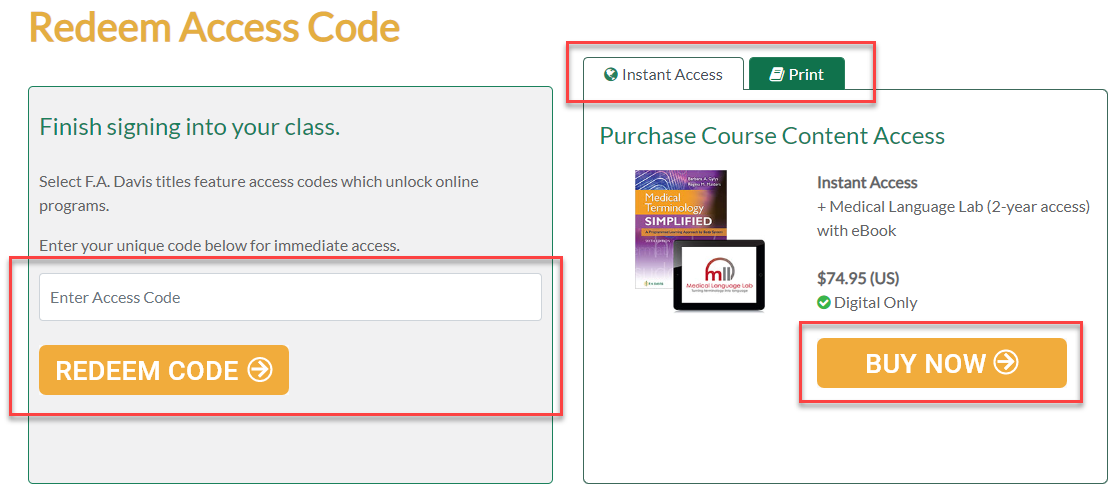
If you do not have an Access Code, or otherwise haven't purchased your textbook yet, you can click the "BUY NOW" button on the right-hand side of the landing page to purchase Instant Access to an eBook version of your textbook (which includes access to Medical Language Lab). If you would prefer a print copy of the textbook, you can select the "Print" tab to order a hard copy (which includes the eBook and Medical Language Lab).
When purchasing FA Davis course materials, make sure to use your institutional email (i.e. the email address you use to log into your LMS course). After you complete your purchase, close the checkout window and return to your LMS course to again launch an MLL assignment.
If you encounter an issue while redeeming your access, please proceed to "Need more help?" step below and contact our Customer Support team for assistance.
5. Complete exercises within an MLL assignment
When your MLL access has been redeemed, launching MLL assignment links will take you directly to the MLL assignments themselves.
The majority of MLL assignment content is comprised of topic/chapter-based assignment modules. Click "Details" to reveal the full contents of an MLL assignment module.
Within an MLL assignment module, you'll click "Start" buttons to begin individual MLL exercises and activities. For more information on what you might find within an MLL assignment module, consult our "Assignment Exercise Types" article.

When you finish an MLL assignment exercise attempt, you'll see a Review popup.
Most instructors will set exercises with the "Practice and then Grade" Grading Rule. As detailed on the Review Popup for this Grading Rule, clicking the "Review" button at the end of an exercise attempt will bring you to a feedback screen for your current exercise attempt.
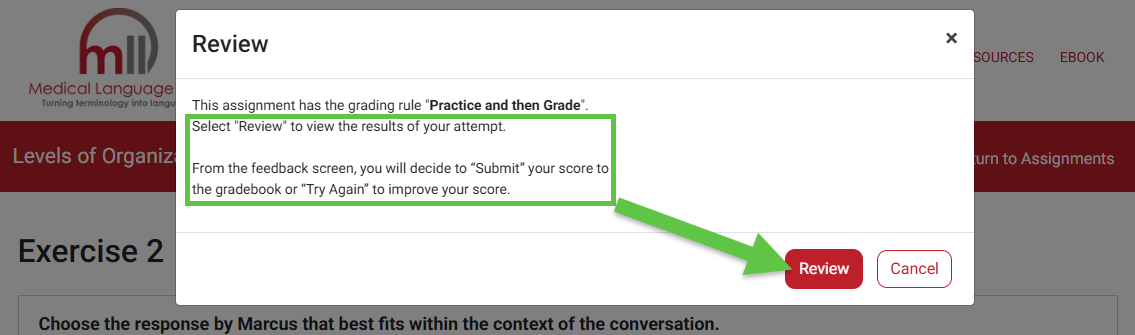
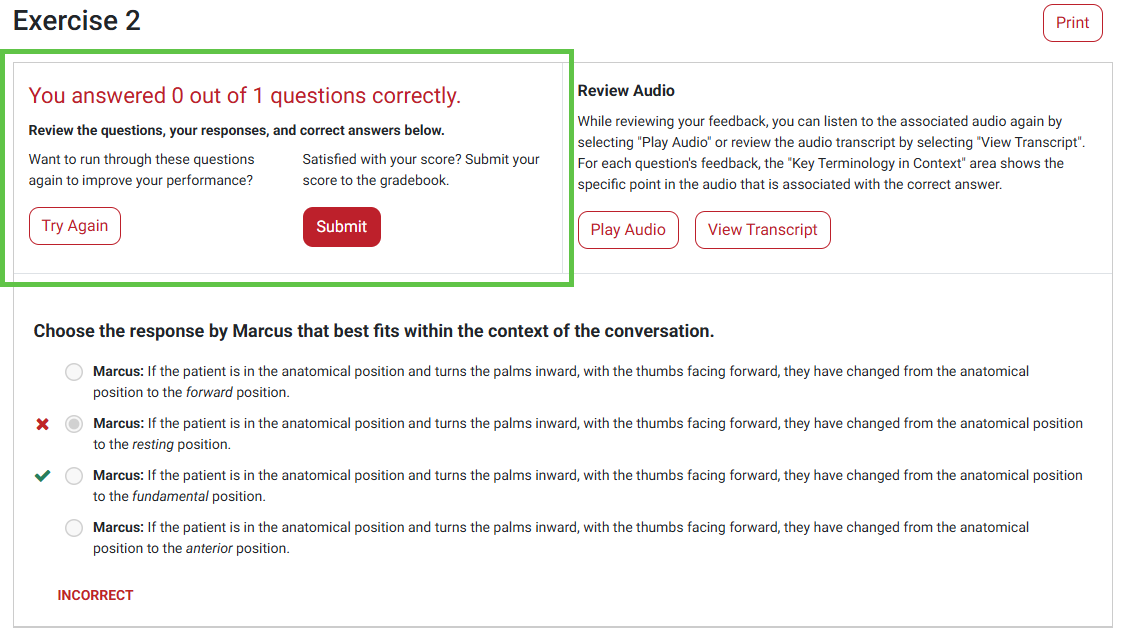
Your attempt's feedback screen will show you the correct answers and the score you would've gotten for the exercise, but will not record your score for that attempt.
Click "Try Again" to discard your current attempt and begin anew; if you click "Try Again," your score will not be recorded.
You must click "Submit" at the end of an exercise attempt, for a score to be recorded. A grade will not recorded until you click "Submit," and you cannot improve your grade once you have clicked "Submit."
You must launch each assignment attempt directly via your LMS, for your grades to record successfully. After launching an MLL assignment, you can complete multiple exercises successively, and leave exercises in-progress to complete them later.
When resuming work on an MLL assignment (perhaps, to complete the last two or three exercises you might have within an assignment), please re-launch it from your LMS course.
6. Check your grades
Be sure to check the grading page of your LMS course to confirm your MLL assignment scores are being recorded.
As you complete exercises within an MLL assignment, you'll see your grade for that assignment adjust according to the running average of scores for the exercises you've completed. For example, if you complete one exercise on-time with a score of 100%, your overall grade for that exercise's MLL assignment will appear as a 100%.

Then, if you complete a second exercise on-time with a 50%, your grade for that MLL assignment would appear as an average of your scores for those two exercises.

Once the due date for an assignment passes, any incomplete exercises within that assignment will be scored as 0%, and those scores will be factored into your final average grade for the assignment.
Make sure to complete all of your assigned exercises on time to avoid lowering your grade! We recommend using the Feedback Center to track your progress for each assignment and confirm that you have completed all required exercises before the assignment deadline.

For more information on checking your MLL assignment performance, consult our "Grading and Feedback Center" article.
7. Access your eBook
Whether you redeem access to MLL via an Access Code or by purchasing Instant Access for a textbook, you'll have eBook access for your required textbook.
After launching an MLL assignment, you can access your eBook by clicking the “eBook” link in the upper-right corner above your MLL assignment, or by clicking the "Start" button when viewing the "Read" activity within an MLL assignment.

For more information on accessing your eBook, consult our "eBook Access" article.
8. Need more help?
If you have consulted the information/resources above and are still unable to access your MLL content, please contact Customer Support by emailing [email protected] for further assistance. Include your name, school email address, instructor's name and section number in your help-request ticket, so our team can contact and further assist you.

